Trade and invest by talking to your AI

Best AI Trading App

Quantplay connects your broker accounts to ChatGPT, Claude and other AI apps. Ask about every account in one chat. When you're ready, let your AI trade, with loss limits that exit for you.
Zerodha · Upstox · Angel One · Kotak Neo · Motilal Oswal · Alice Blue · Finvasia · Flattrade · IIFL · Jainam

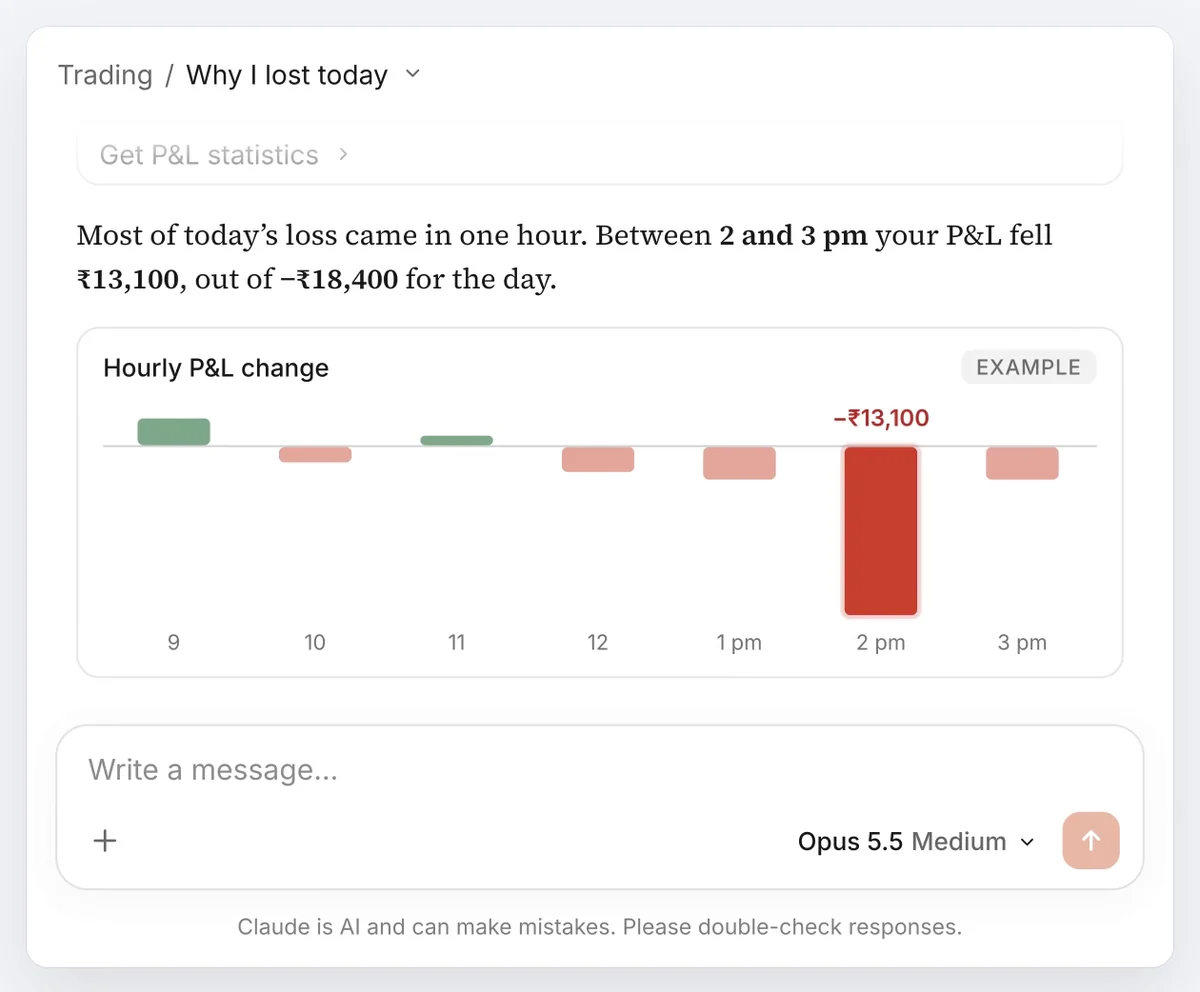
An AI app, connected through Quantplay, showing the hour that caused most of the day's loss

Your AI, connected to your broker through Quantplay. Example figures.

Features

Everything your AI can do with Quantplay

Works in ChatGPT, Claude, Grok and other AI apps that support connectors.

Ask

  • Every account, one question

    Positions, holdings, orders and margins across all your linked accounts.

  • Live P&L and history

    Today's P&L, past days and stats, broken down by account.

  • Portfolio check

    Sector weights and your biggest holdings, across every account, family’s included.

  • Market data

    Live prices, option chains, expiry dates and historical candles.

  • Why the day went wrong

    Your AI reads your real orders and finds the hour or trades that cost you.

Act, once you allow it

  • Place, modify and cancel orders

    In plain words. Your AI checks the price and confirms before it sends.

  • Square off in one message

    Exit intraday and F&O positions. Delivery holdings are never sold.

  • One order, several accounts

    Place the same order on each of your linked accounts in one go.

  • Static IP included

    Brokers now reject API orders from unregistered IPs. PRO registers one for your account.

Stay protected

  • Daily stoploss and target

    When the day's P&L hits either one, positions exit within seconds.

  • Trailing stoploss

    Moves your stoploss up as profit grows, to keep part of a good day.

  • Kill switch

    A harder loss limit. Quantplay gives your AI no way to change it, and it’s locked from 9:15 to 3:20.

  • Keep hedges on exit

    Keep hedge legs when positions are squared off, so you aren’t left holding a naked leg.

  • View-only by default

    Trading and limit changes stay off until you tick them. Disconnect any time.

See it

How it looks in your AI

  1. 01

    Works with every AI you use

    ChatGPT, Claude, Grok, Cursor and any AI app that supports connectors. Add the Quantplay link, sign in and approve. No code.

    Watch the 20-second demo
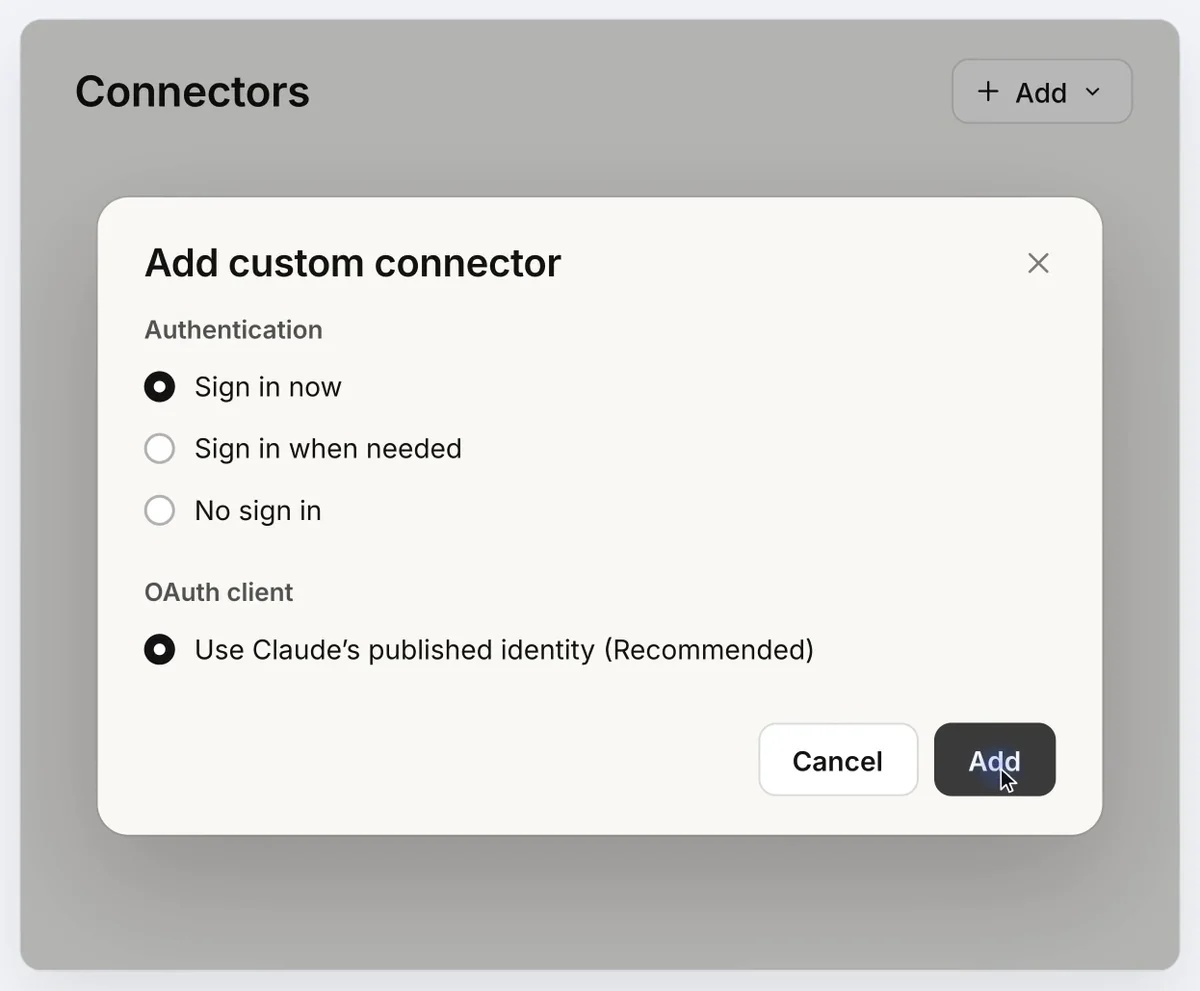
    Adding Quantplay as a connector in an AI app
  2. 02

    You choose what it can do

    This is the approval screen. Only viewing is ticked. Trading and limit changes stay off until you tick them.

    Watch the 20-second demo
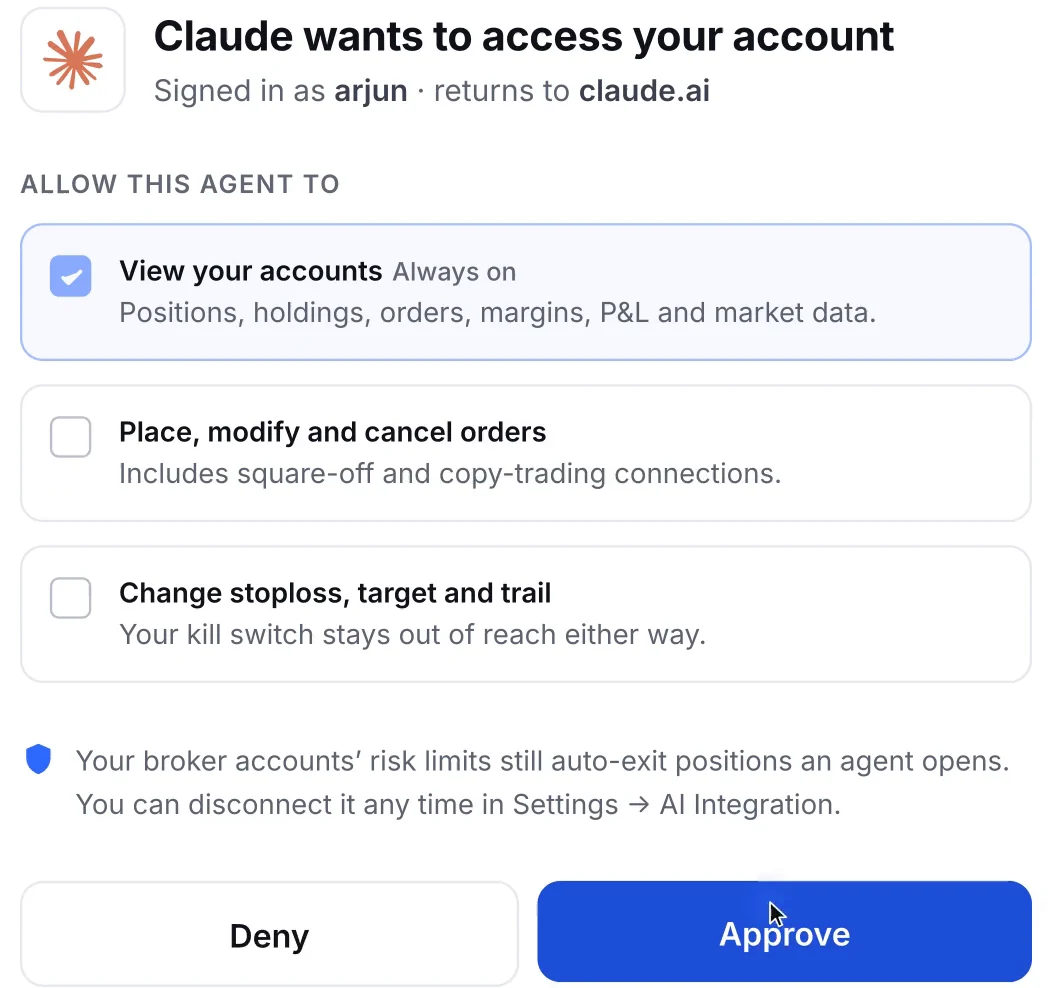
    Quantplay consent screen with only View your accounts ticked
  3. 03

    “What’s my P&L across all my accounts?”

    One question gets every account’s P&L, across Zerodha, Upstox and Angel One, then follow up in plain words.

    Watch the 20-second demo
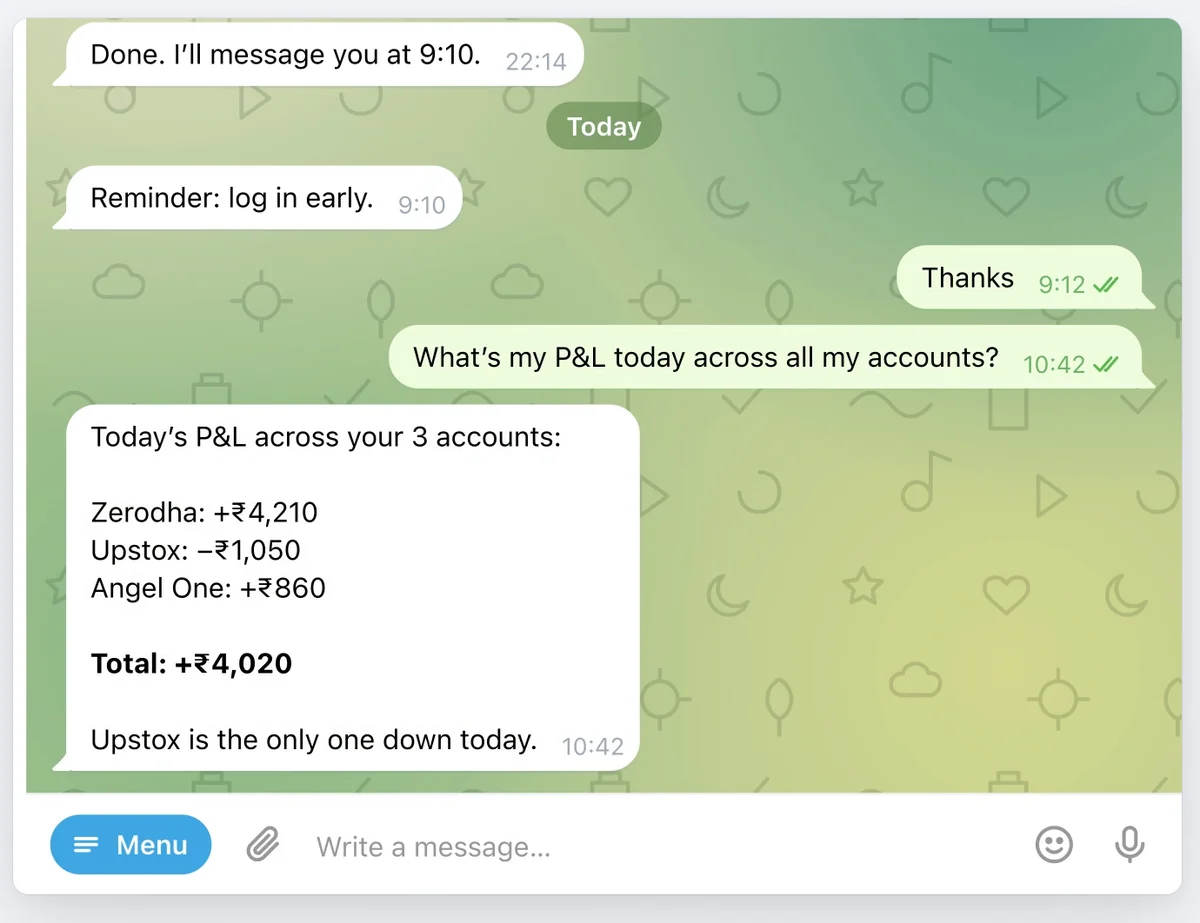
    An AI agent answering today's P&L across Zerodha, Upstox and Angel One
  4. 04

    “In a meeting. Close all my intraday positions.”

    One message squares off every intraday and F&O position. Your long-term holdings stay untouched.

    Watch the 20-second demo
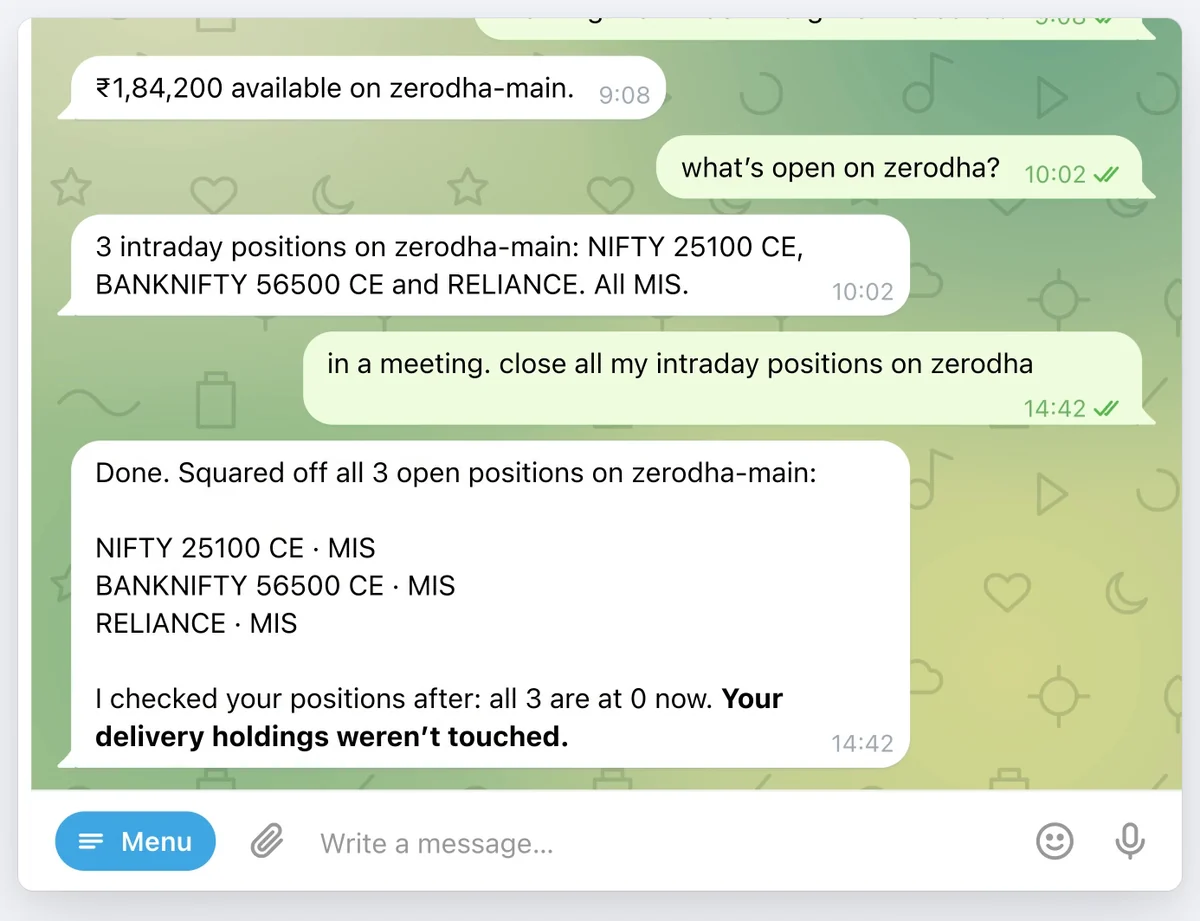
    An agent squaring off three intraday positions after one Telegram message
  5. 05

    Daily loss limit set at −₹8,000

    The stoploss was set at −₹8,000. When the day’s loss crossed it, every position exited and the day closed at −₹8,310.

    Watch the 20-second demo
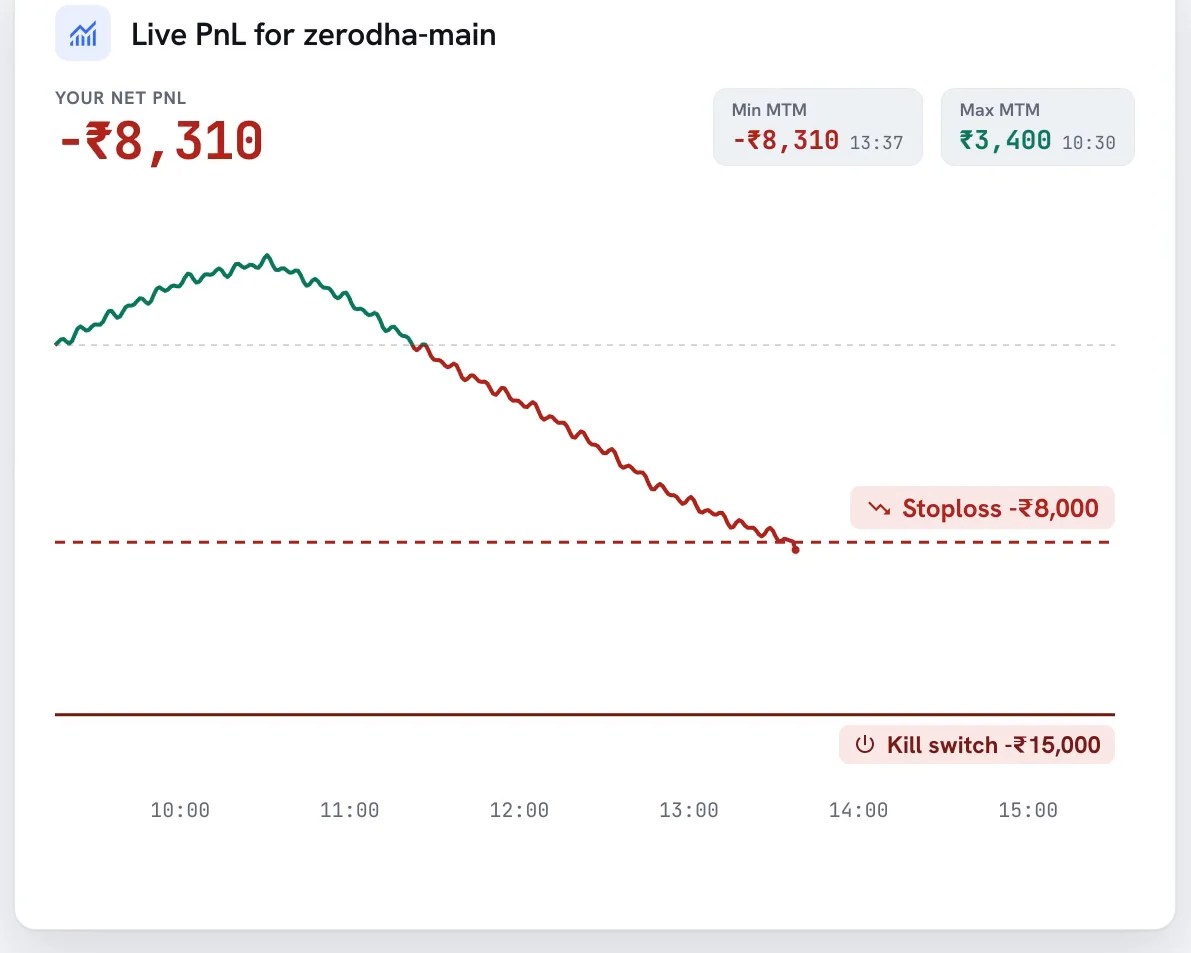
    Live P&L chart crossing a −₹8,000 stoploss and flattening after the auto-exit
  6. 06

    Your AI can’t change the kill switch

    An agent loosened this stoploss to −₹50,000. The kill switch stayed armed at −₹20,000, because Quantplay gives the AI no way to change it.

    Watch the 20-second demo
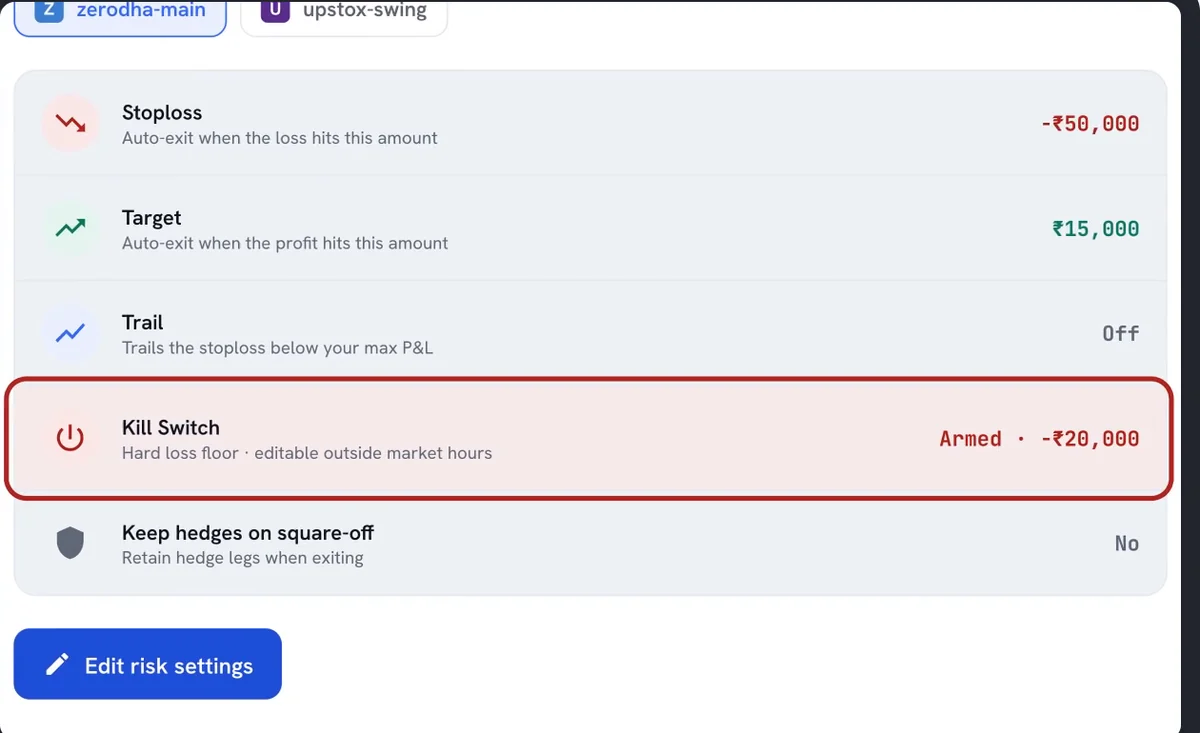
    Risk settings: the stoploss was moved to −₹50,000 but the kill switch stays armed at −₹20,000

Screens from Quantplay demo films. All figures are examples.

Setup

Start in three steps

  1. 1

    Connect your broker

    Create a free Quantplay account and add your Zerodha, Upstox, Angel One or other broker account.

  2. 2

    Add Quantplay to your AI

    Paste one link into Claude, ChatGPT, Grok or another AI app, sign in and approve. View-only is the default.

  3. 3

    Ask

    “What's my P&L across all accounts?” “Why did I lose today?” Turn on trading only when you want your AI to act.

Safety

Before you connect your account

  • It can't move your money

    Your AI has no way to withdraw or transfer funds, and it never sees your broker password.

  • View-only until you tick trading

    On the approval screen, placing orders and changing limits start unticked. You can stay view-only for good.

  • Disconnect any time

    Remove the AI's access in Settings → AI Integration, or disconnect the broker account itself.

  • What auto-login means

    To sign in to your broker each morning for you, Quantplay keeps the broker login details you enter.

  • What's free and what's paid

    Connecting and reading are free. PRO is ₹700 per broker account for 30 days: trading, loss limits and a static IP.

  • Limits act after the fact

    Loss limits check every few seconds and exit positions once crossed. They don't block orders, and a fast market can go past them.

Questions

Questions about the AI trading app

Still unsure about something?

Trading involves risk of loss. Quantplay is a technology platform, not investment advice.

  • One link, 10+ brokers

    Claude, ChatGPT or any MCP app, across every account you link.

  • Auto-exit on a loss

    Stoploss and target (PRO) close positions, even ones your AI placed.

  • A kill switch no AI can touch

    No AI can change it, and nobody can change it between 9:15 and 3:20.

Get started

Bring your broker into your AI

Continue with GoogleContinue with email

Already have an account? Sign in

By continuing, you agree to our Terms and Privacy Policy.